Introduction
This document will assist in enabling multiple Tool files and provide information preventing a user from accidentally changing the tool selected for job motion (tool interlock) and position variables (P-var check tool). Tool changes can have undesired results when using cartesian coordinates.
Overview
In many applications, multiple tools are required due to center of mass and weight changes. In addition, multiple locations of Tool Center Point (TCP) may be required. There may also be situations where multiple tool files will not be enabled.
How to verify a controller’s multiple tool status
There are a couple ways to verify if multiple tool is enabled.
- Select ROBOT on the pendant. If there is not a tool # in top right of screen, multiple tool is not enabled.
Multiple tool not enabled.

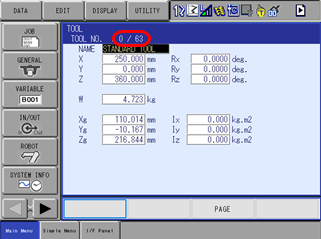
Multiple tool is enabled.

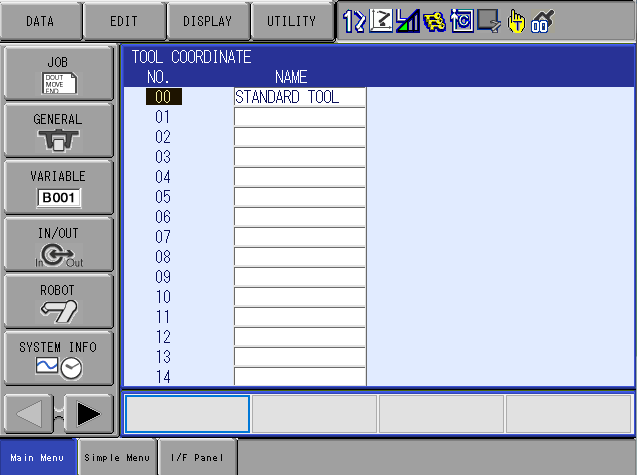
- Select ROBOT, then TOOL on the pendant. If a list is not displayed, multiple tool is not enabled.
Below, multiple tool is not enabled. Detail for a single tool file is displayed - no list
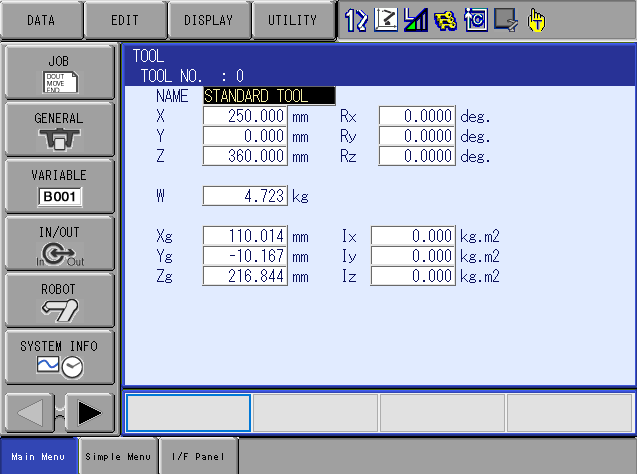
Below, multiple tool is enabled the tool list shown
Below is the detail for a single tool file when multiple tool files are enabled.
How To Enable Controller’s Multiple Tool
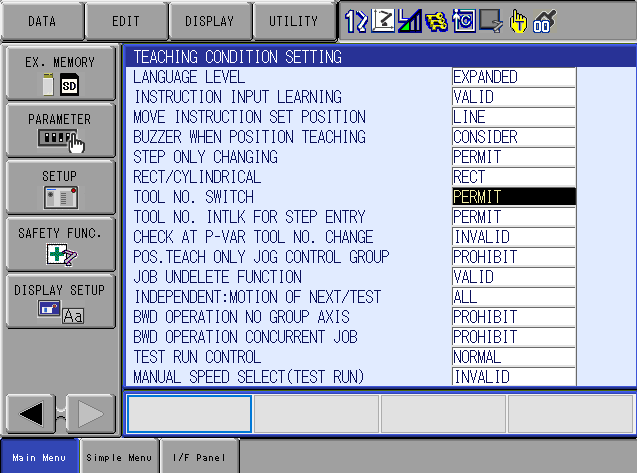
- Select SETUP, then TEACHING COND on the pendant. (Management or Safety Security level required)
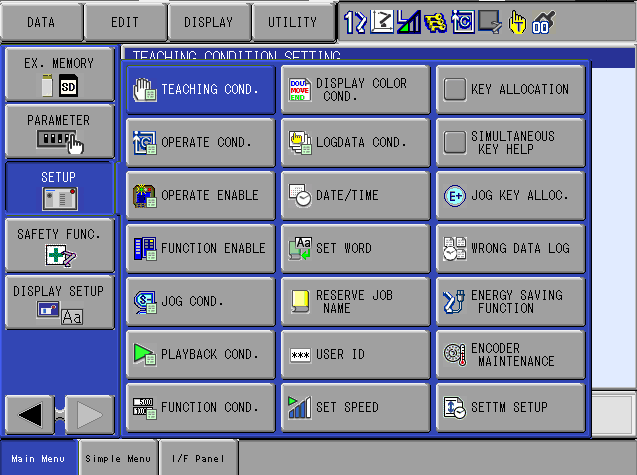
- Move the cursor to TOOL NO. SWITCH
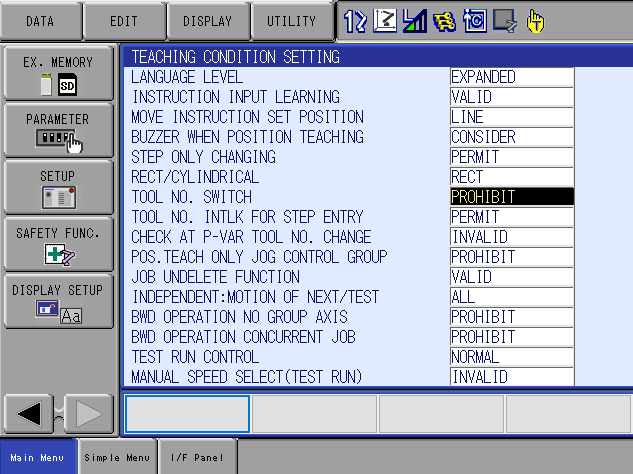
- The SELECT key will change between PERMIT (multiple tool enabled) & PROHIBIT (multiple tool disabled)
Additional Multiple Tool Functions (Parameter S2C0234)
You can prevent accidental tool change when modifying positions and position variables. These are 2 separate functions.
- Prevent job motion tool changes. Changing this setting after your programming is complete and verified saves the programmer from having to change the tool setting back and forth during programming.
a. Select SETUP, then TEACHING COND on the pendant. (Management or Safety Security level required)
b. Move the cursor to TOOL NO. INTLK FOR STEP ENTRY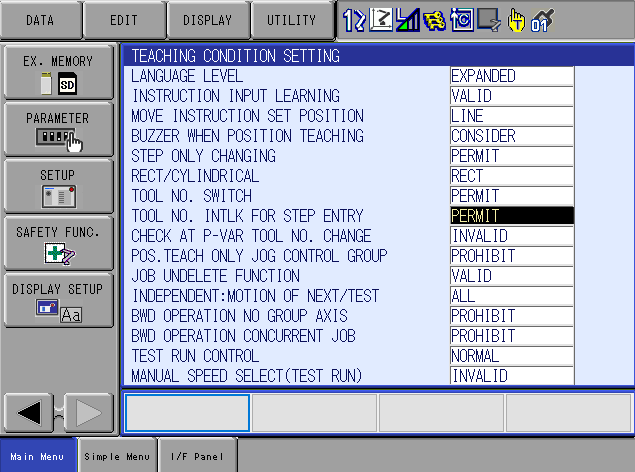
c. The SELECT key will change between PERMIT (allows user to change tool) & PROHIBIT (does not allow user to change tool & prevents user from inserting new position with mismatched tools.)
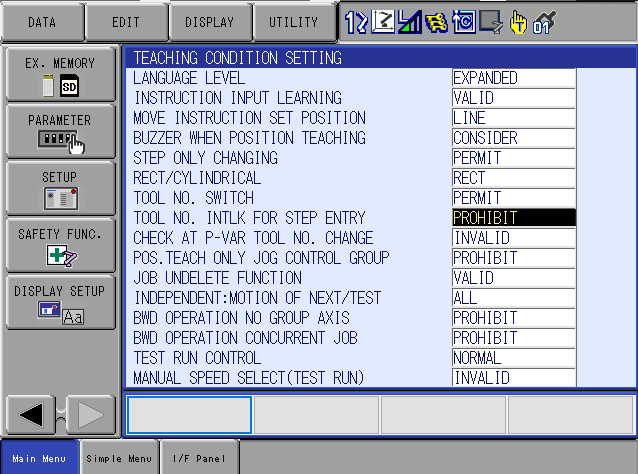
Mismatch tool error message: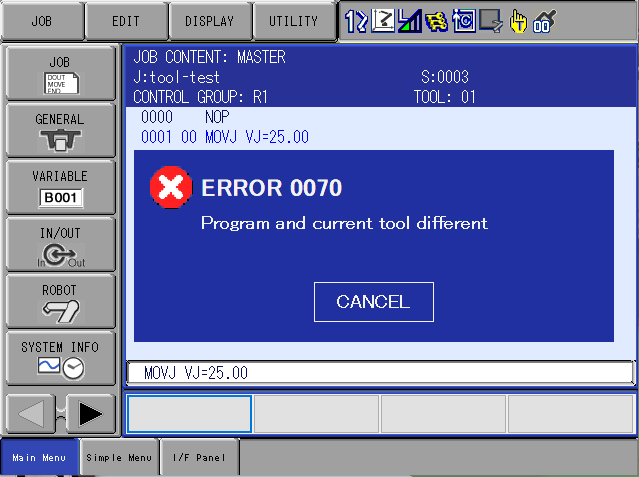
- Position variable tool change check
a. Select SETUP and then TEACHING COND using the pendant. (Management or Safety Security level required)
b. Move the cursor to CHECK AT P-VAR. TOOL NO. CHANGE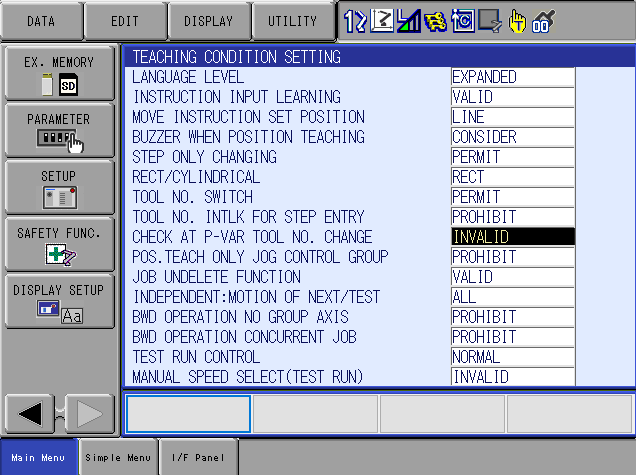
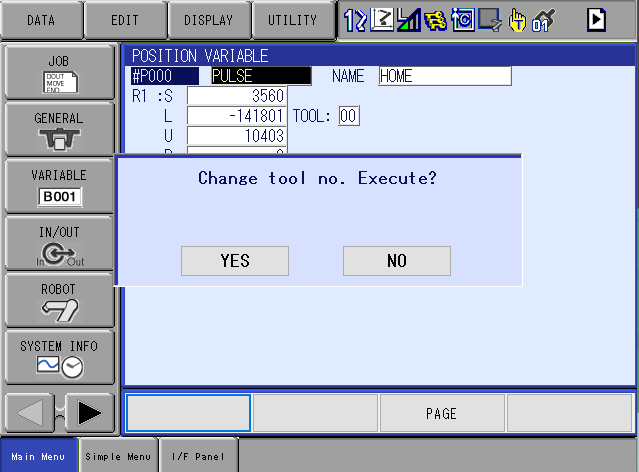
c. The SELECT key will change between INVALID (allows user to change tool) & VALID (does allow user to change tool but displays confirmation message)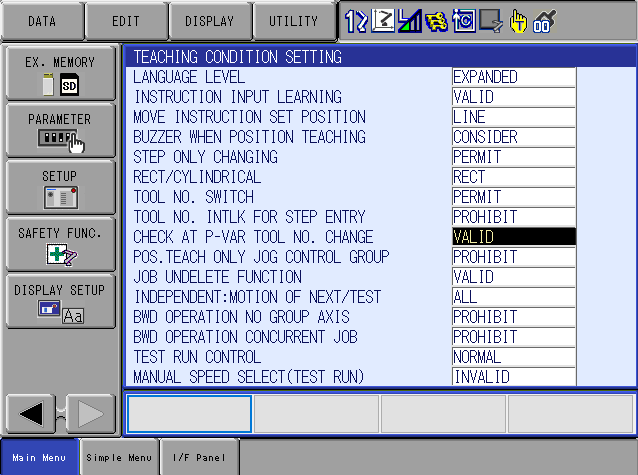
Below is an example of the confirmation window that appears.
Comments
0 comments
Please sign in to leave a comment.