This document will cover why, what, when, and how to perform backups of the controller. Emphasis is placed on why, what, and when since these topics are often not covered. Additional detail describing how to perform backups and manage files is contained in the “Instructions” or “Installation and Operation” manuals that came with your controller (links below.)
| DX100 | DX100 Installation, Operation and Maintenance Instructions |
| DX200 | Controller Installation and Operation |
| YRC1000 | YRC1000 Instructions |
| YRC1000micro | YRC1000micro Instructions |
Why to Backup
This can be a short discussion. Accidents happen. People make mistakes. Having a spare copy of your controller configuration could allow you to get back to business quickly in the event of a problem. The controller configuration is stored in a series of files that are easily copied off to a USB memory stick and / or another computer. You need to have a backup strategy and use it.
What to Backup
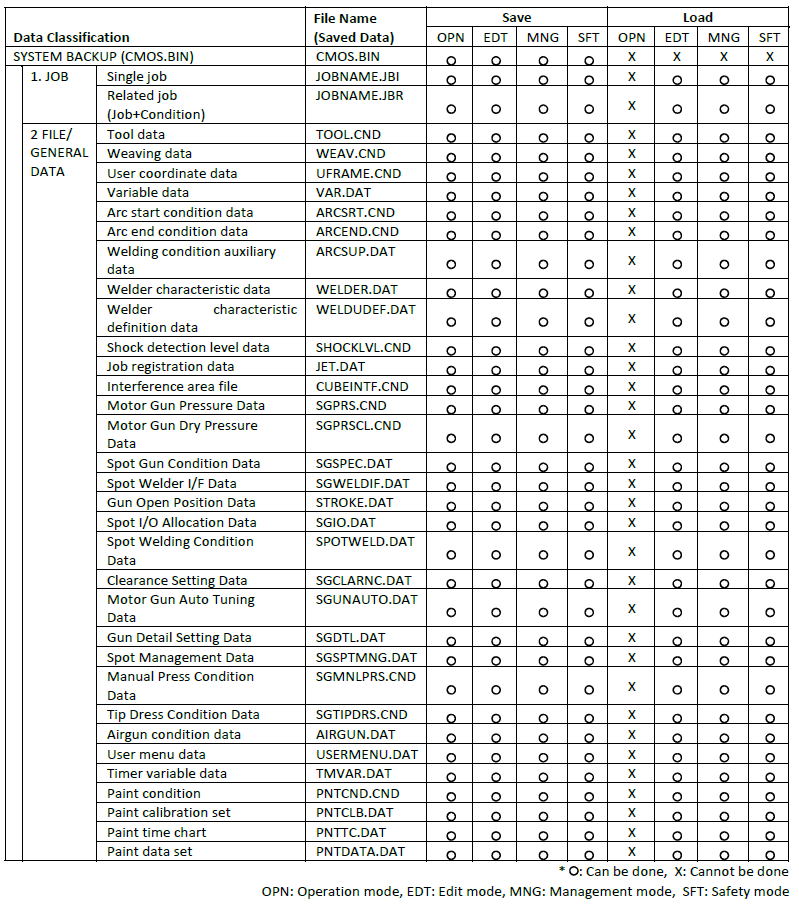
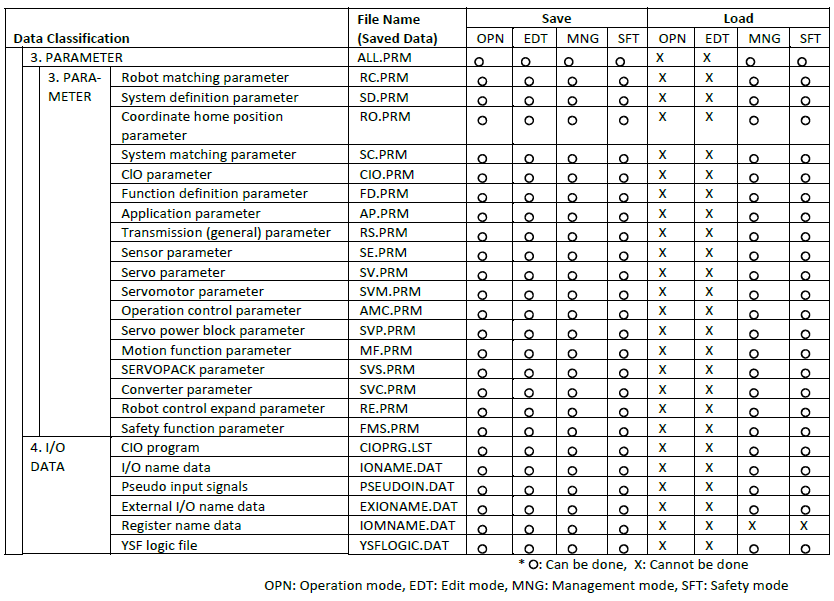
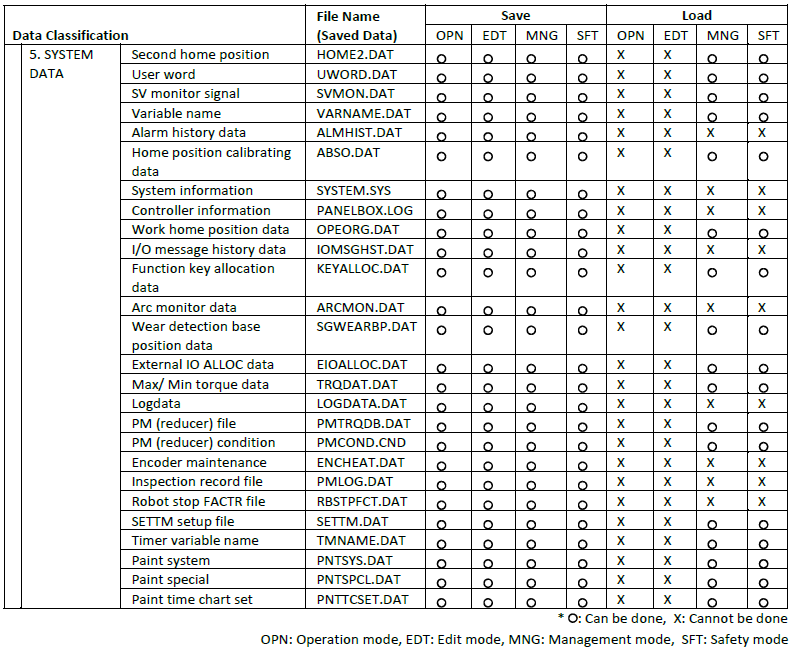
It is better to have too many backup files than not enough. Disk storage is relatively cheap. If you grab everything, you don’t need to decide what to backup. Our recommendation would be to save everything (all files and CMOS.BIN) each time you do the backups. An explanation of the different files available and categories they fall in to is included at the end of this document.
With that said, there may be situations where you don’t have the space or the time to copy all of the files. Consider just getting a copy of the CMOS.BIN file. The CMOS.BIN file is a binary image of all files in memory at the time of the backup. It has the benefit of being a single file that may include everything you need. The down sides are:
- You cannot selectively restore just a few files – it is an all-or-nothing proposition.
- The file is relatively big (~30MB) which means it can be slow to copy and move around.
When to Backup
There are two times to perform backups:
- Before and after significant changes.
- On a fixed schedule to address changes that may have occurred without a backup.
You want a backup from before a significant change to be able revert to the prior configuration in case of problems. You want a backup right after the change to be able to revert to what is sometimes referred to as the “last known good” configuration. If you made a change and your testing showed everything was working well, that is a “good” configuration you want saved for possible use.
What counts as a “significant change”? Some things are easy to list: a software upgrade, the addition of software or hardware features, the implementation of a bug fix, etc. However, changes can occur without anyone realizing what just happened was significant. Also, people may make changes to your configuration outside of your standard procedure. For these reasons, you also should also set up backups on a fixed schedule. Pick a schedule based on your situation.
Installations with a lot of changes going on may need nightly or weekly backups. At the other end of the spectrum, it may only be necessary to take a backup every few months or annually for setups that are very stable.
Where to Store Backup Files
This is often overlooked. If you can’t find your backup, can’t get to the files, or the backup files have been corrupted it is like never having a backup at all. The backup files should be stored in a safe location, physically away from the controller. In the event of a fire or other natural disaster at the site. You don’t want your backup files lost or inaccessible. You may want to review jobs or other configuration files without making a trip to where the robot is located. It may also be necessary to keep a copy of the backup offsite – using cloud storage, in a safe deposit box, someone’s home, etc.
It is best to dedicate the backup storage just for backups. In other words, don’t keep the backup you may need later on the USB stick you carry around in your pocket or use every day. Don’t keep the backups on a laptop that can be lost, stolen or lose files due to hardware problems. Copy the files to your “master backups” location, put your USB stick in a safe place, etc.
How to Backup
Purchase a few USB memory sticks. It is good to be able to have enough that you can file important backups away without worrying about running out of them. Experience has shown that the larger, more expensive memory sticks may not work as well as a more basic version. Ones with 4Gb capacity and meeting the USB 2.0 standard should be fine.
Following are detailed instructions for backing up using a standard pendant, using the Smart Pendant and several automatic backup alternatives. Automatic backups are a great way to make sure the “fixed schedule” backups occur without requiring someone to remember to do them or visit the location of the controller.
Backup Procedures Using Standard Pendant
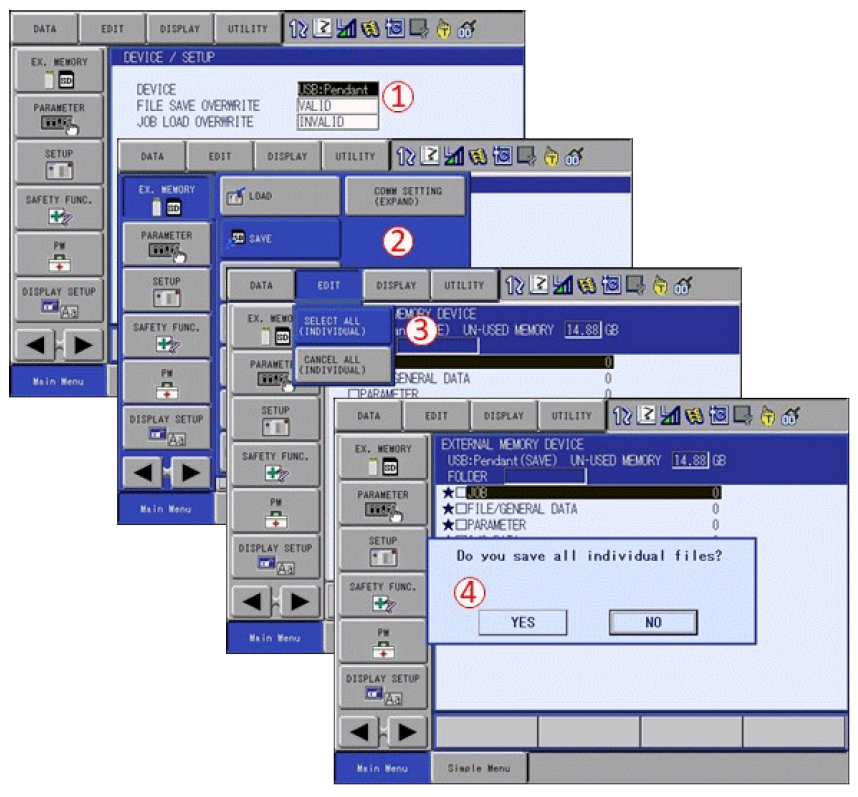
To backup all files individually at any Security Level:
|
Make sure you have inserted your USB Memory Device into the pendant.
|
 |
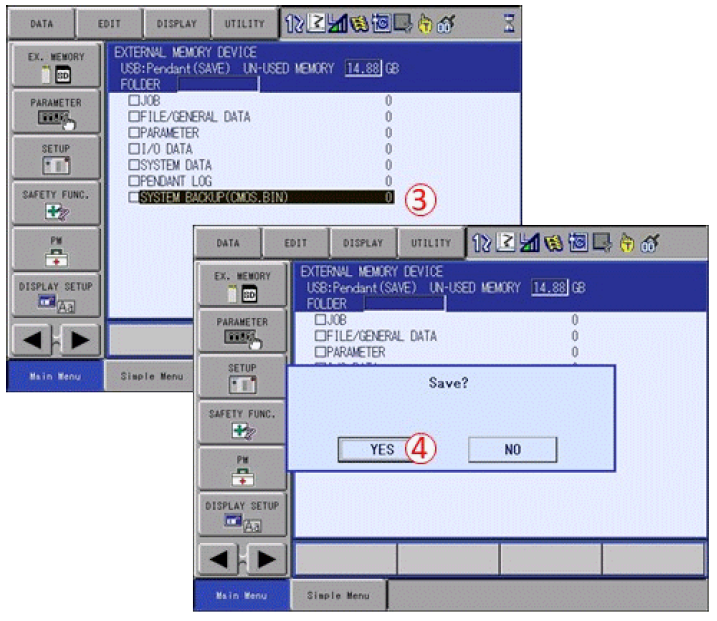
To backup CMOS.BIN at any Security Level:
|
Make sure you have inserted your USB Memory Device into the pendant.
|
 |
Backup Procedures Using Smart Pendant
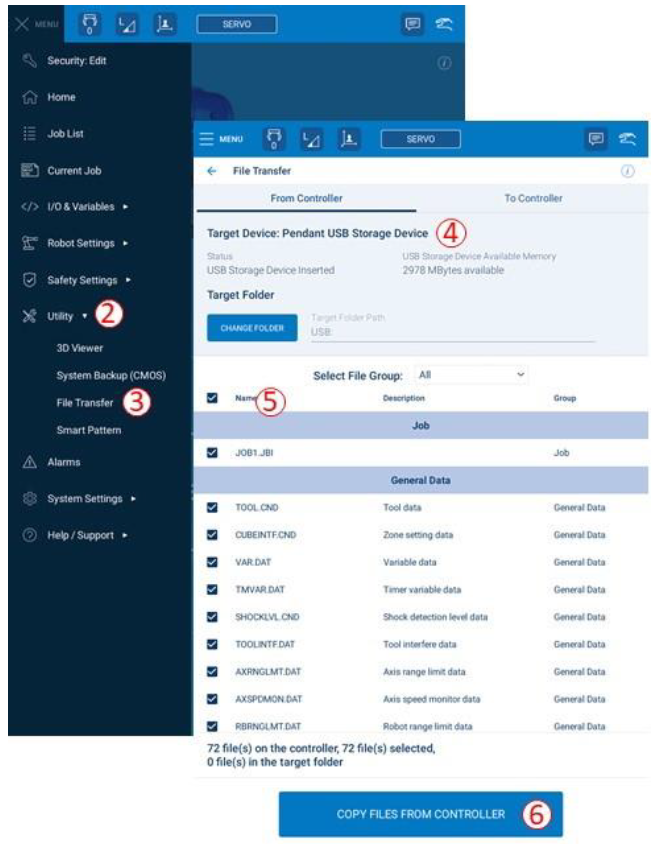
To backup all files individually at any Security Level:
|
Make sure you have inserted your USB Memory Device into the pendant.
|
 |
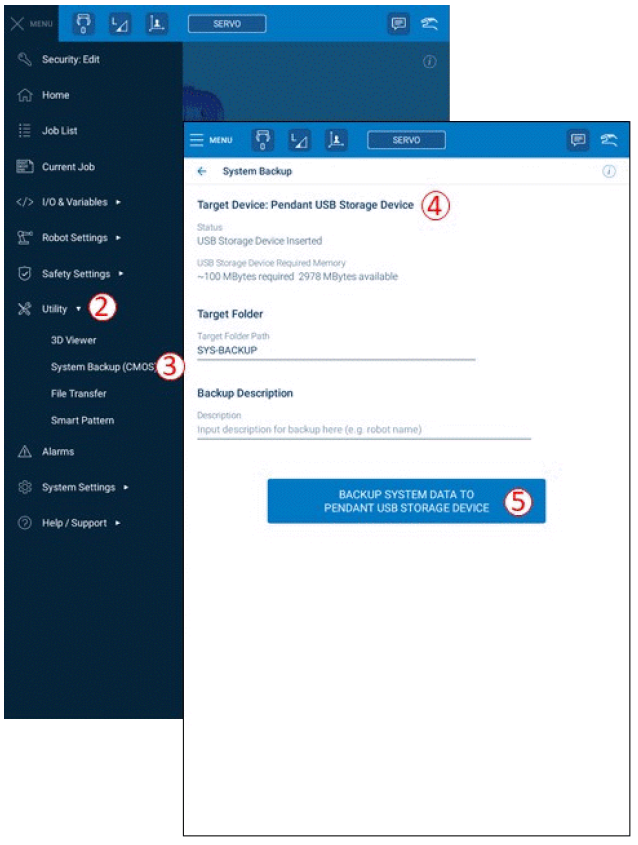
To backup CMOS.BIN at any Security Level:
|
Make sure you have inserted your USB Memory Device into the pendant.
|
 |
Automatic Backup Alternatives
Listed below are several alternatives available that will perform backups on a scheduled basis without human intervention. Detailed setup instructions are not included here, but documentation is referenced to explain how these are configured.
Controller Automatic Backup Function
|
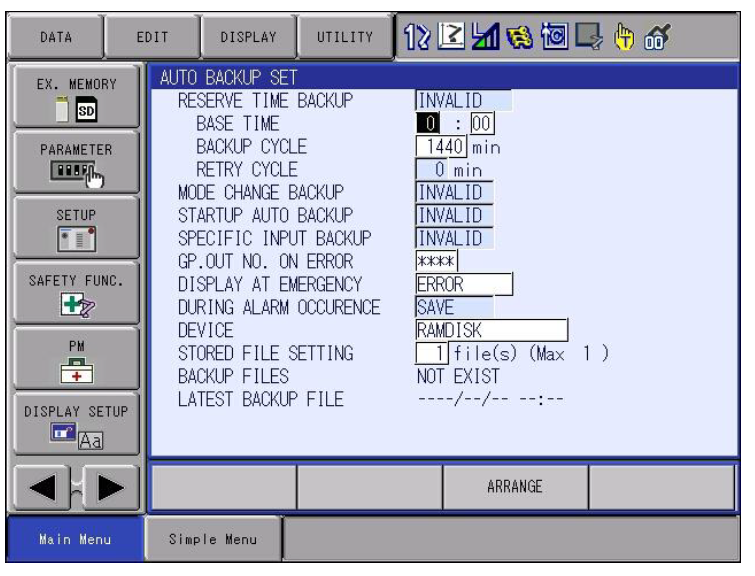
Each of the controller manuals (available in the links at the beginning of this document) describe an “Automatic Backup” function. Access the setting for Automatic Backup under SETUP, AUTO BACKUP SET on the pendant. This function automatically creates a single file backup (CMOSBK.BIN) of the robot based on schedules and criteria you define. The file(s) can be stored on the memory device in the pendant, inside the controller or to a memory area (RAMDISK) on the ACP01 board in the controller. Since it is possible the robot could be running a job or during teach mode operations, there are criteria that may be set to control whether to get as much data as possible during those operations, wait until the mode changes, only backup on system startup, only backup based on an external signal, etc. |
 |
The major benefit of this approach is that backups can occur regularly without human intervention. However, the backups are stored on the or near the controller itself. That could pose problems if you lose access to the controller or the controller is destroyed. This approach should be supplemented with offsite backups via another method.
Robot Manager
|
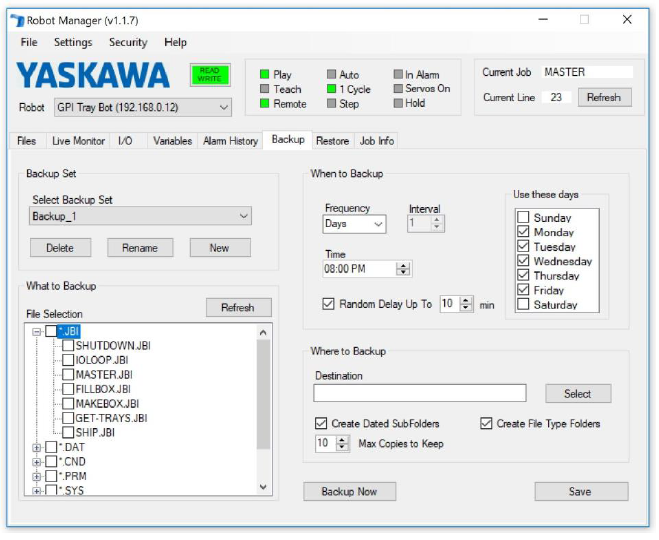
Robot Manager is a product which allows remote access and management of Yaskawa Motoman robots from a PC connected to the same network. One of the powerful features is the ability to schedule backups to occur on a regular basis. As shown in the graphic at the right, different backup “sets” can be defined to copy different files on different schedules and to store files in folders by date and file types. Robot Manager leverages the Windows Task Scheduler to run Robot Manager per your schedule requirements. Once the files have been copied to the PC, you could develop other procedures to copy them to the cloud, local or remove servers, or USB memory sticks at the PC. |
 |
Yaskawa Cockpit
Yaskawa Cockpit is a real-time data collection and visualization tool for devices connected throughout your facility. It provides Asset Management, Maintenance Analysis, Real-time Alarm Notification and Event Logging, Data Management (backups and event logging) and monitoring of 3rd party devices. With Yaskawa Cockpit, you can setup regular backups of your controllers to a local PC.
Additional information on Yaskawa Cockpit is available at this link.
Roll Your Own Backup Solutions
All our controllers support connectivity via Ethernet, standard file transfer protocols (e.g., FTP) and have programming interfaces that allow you to access files. With a little work you could create your own backup solution. You will need to take into consideration whether the files are stable (not in the process of being updated) as you attempt to access them remotely.
Additional information is available here on the motoman.com website.
How to Restore
Should you need to restore files from a backup, the procedure is basically the reverse of a backup. From the standard pendant, select EXT MEMORY, LOAD and select the files you wish to restore. On the Smart Pendant, select UTILITYU, FILE TRANSFER, then make sure TO CONTROLLER is selected.
A few caveats:
CMOS.BIN can only be restored while in MAINTENANCE MODE. (Hold the MAIN MENU key while powering on the controller.
It is not safe to copy files from one controller to another, even if they are configured the same. Job (JBI) files may be copied in many cases, with the understanding that there will be work to do on the target system to re-teach points, adapt to different signal addressing, etc. Contact Yaskawa Technical Support for advice on replicated configuration information from one controller to another.
Comments
0 comments
Please sign in to leave a comment.